Online Keyboard Shortcuts
OnlineShortcuts.com provides a comprehensive, cross-platform reference for essential Windows, macOS, and Linux keyboard shortcuts to boost.
Visit
About Online Keyboard Shortcuts
Online Keyboard Shortcuts, available at OnlineShortcuts.com, is a comprehensive, platform-agnostic reference guide designed to help users master the most essential keyboard shortcuts for Windows, macOS, and Linux operating systems. This product serves as a centralized knowledge base for anyone looking to enhance their computing efficiency by reducing dependency on mouse navigation. The website systematically organizes shortcuts into logical categories, including system-wide commands, operating system-specific key combinations (such as Windows Key shortcuts), and application-specific hotkeys for tools like Command Prompt, File Explorer, web browsers, and text editing software. Each shortcut is presented in a clear, visual format that shows the exact key combination required to execute a command, making it accessible for beginners and experienced users alike. The value proposition of Online Keyboard Shortcuts lies in its ability to transform how users interact with their computers by replacing slow, multi-step mouse actions with instantaneous keystrokes. This translates directly into measurable productivity gains, reduced repetitive strain from constant mouse use, and a more fluid workflow across different software environments. The product is designed for a wide audience including office workers, developers, designers, students, and anyone who spends significant time on a computer. Beyond the web-based reference, the platform offers downloadable cheat sheets in PDF and PNG formats, allowing users to keep their most-used shortcuts readily available offline. The site maintains a professional yet approachable tone, combining technical accuracy with lighthearted engagement through its frequently asked questions section, which humorously acknowledges that these are questions no one has actually asked. This balance makes the resource both authoritative and enjoyable to use, positioning it as a valuable tool for skill development in digital literacy.
Features of Online Keyboard Shortcuts
Comprehensive Cross-Platform Coverage
The website provides an extensive collection of keyboard shortcuts spanning all three major desktop operating systems: Windows, macOS, and Linux. This cross-platform approach ensures that users working in mixed environments or transitioning between systems can find relevant shortcuts in one unified location. The shortcuts are organized by operating system, making it easy to navigate and compare differences between platforms, such as how the Control key on Windows corresponds to the Command key on macOS for similar functions.
Categorized Shortcut Organization
All shortcuts are systematically grouped into logical categories including system-wide commands, operating system-specific key combinations, and application-specific shortcuts for popular tools. This categorization allows users to quickly locate relevant commands without sifting through unrelated information. Categories include Windows Systemwide Shortcuts, Windows Key Shortcuts, Virtual Desktop commands, Text Editing shortcuts, Web Browser hotkeys, and specialized sections for Command Prompt and File Explorer.
Visual Key Combination Display
Each shortcut is presented with a clear visual representation showing the exact key combination required, including modifier keys like Ctrl, Alt, Shift, Win, and their Mac equivalents. The layout displays keys in sequence with plus signs between them, making it immediately clear which keys to press and in what order. This visual approach reduces confusion and helps users memorize patterns more effectively than text-only descriptions.
Downloadable Cheat Sheet Resources
Users can download the complete shortcut collection as a PDF file or as PNG images in both dark and light themes. This feature enables offline access to the reference material, which is particularly valuable for users who want to print a physical copy for their desk or save a digital version for use without an internet connection. The multiple format options accommodate different preferences and use cases.
Use Cases of Online Keyboard Shortcuts
Productivity Enhancement for Office Workers
Office professionals who spend their days working with word processors, spreadsheets, email clients, and presentation software can dramatically reduce task completion times by learning relevant shortcuts. For example, mastering text editing shortcuts like Ctrl+C, Ctrl+V, and Ctrl+Z eliminates the need to navigate context menus for basic operations. The ability to switch between applications using Alt+Tab, snap windows with Win+Left/Right arrows, and quickly open settings with Win+I streamlines multitasking and reduces workflow interruptions caused by mouse navigation.
Software Development and Coding Efficiency
Developers and programmers benefit significantly from keyboard shortcuts that accelerate common coding tasks. Web browser shortcuts like Ctrl+T for new tabs, Ctrl+W to close tabs, and Ctrl+Shift+T to reopen closed tabs help developers manage research resources efficiently. Command Prompt shortcuts, including F7 to view command history and Ctrl+C/V for copy-paste operations, speed up terminal-based workflows. The ability to create and switch between virtual desktops using Win+Ctrl+D and Win+Ctrl+Left/Right arrows helps developers organize different projects or environments without clutter.
Accessibility and Ergonomics Improvement
Users who experience discomfort or repetitive strain injuries from extensive mouse use can reduce physical strain by adopting keyboard-centric workflows. The platform provides alternatives for virtually every common mouse action, from opening applications (Win key) to navigating files (Win+E) and managing windows (Alt+Space for window menu). This shift from mouse to keyboard input can significantly reduce the repetitive hand and wrist movements that contribute to conditions like carpal tunnel syndrome, while also improving overall typing ergonomics.
Learning and Skill Development for Computer Literacy
Students, new computer users, and professionals transitioning to new operating systems can use the platform as a structured learning resource to build keyboard proficiency. The categorized layout allows users to focus on specific areas such as text editing, file management, or system navigation based on their immediate needs. The availability of downloadable cheat sheets supports spaced repetition learning, where users can periodically review and practice new shortcuts until they become muscle memory. This systematic approach to skill development accelerates the transition from novice to power user.
Frequently Asked Questions
What is Computer Keyboard Shortcuts?
Computer Keyboard Shortcuts is a comprehensive guide available at OnlineShortcuts.com that provides an organized collection of keyboard shortcuts for Windows, macOS, and Linux operating systems. The resource covers system-wide commands, operating system-specific key combinations, and application-specific hotkeys for tools like web browsers, file explorers, command prompts, and text editors. It is designed to help users improve their productivity by providing quick, easy access to commonly used commands and hotkeys without requiring mouse navigation.
How do I use Computer Keyboard Shortcuts?
Using the platform is straightforward: browse the organized lists of shortcuts organized by operating system and category, then find the specific shortcut you need for your current task. Each shortcut is displayed with a clear visual representation showing which keys to press. For best results, practice one or two new shortcuts at a time until they become automatic, then gradually expand your repertoire. The downloadable PDF and PNG cheat sheets can be printed or saved for quick offline reference.
Can I request a new software to be added?
Yes, users are encouraged to suggest new software or operating system shortcuts for inclusion on the platform. While the current collection focuses on the most important and widely-used shortcuts across Windows, macOS, and Linux, the platform welcomes feedback for expansion. Users can submit requests through the website, and the team reviews suggestions for potential addition to future updates of the shortcut library.
How accurate are the keyboard shortcuts?
The shortcuts featured on OnlineShortcuts.com are curated to be as accurate as possible for the specified operating system versions and software applications. However, software updates and operating system changes can occasionally modify or deprecate certain hotkeys. The platform recommends verifying critical shortcuts with the specific version of the software you are running, especially for professional or production environments where accuracy is essential. The site strives to maintain current information but cannot guarantee absolute accuracy across all versions.
Pricing of Online Keyboard Shortcuts
This section is intentionally omitted as no pricing information is available in the provided context.
Explore more in this category:
Similar to Online Keyboard Shortcuts


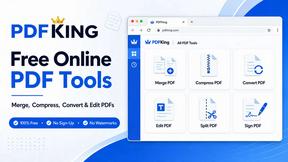
PDFKing
Free all-in-one online PDF toolkit to convert, compress, merge, split, edit, organize and protect PDF files quickly and securely.

PDFWix
PDFWix solves the challenge of managing PDF documents by providing free, secure, and easy-to-use tools for editing, converting, compressing and more..

VideoToScript
Turn TikTok, Reels, Shorts, Facebook videos, audio, and video into accurate timestamped transcripts with TXT, SRT, and VTT exports.